
Manage campaigns in Adapty Ads Manager
Adapty Ads Manager has a two-way integration with Apple Ads: you get near real-time performance data, and you can create and edit campaigns directly from the Adapty dashboard in a much more convenient way than in the native UI.
If you create a campaign in the native Apple Ads dashboard, it will automatically appear in Adapty Ads Manager within 24 hours.
In addition to exploring comprehensive campaign metrics, you can manage all the campaign settings:
- Create campaigns
- Edit existing campaigns
- Launch & pause campaigns
To find campaigns that need attention — such as campaigns that hit their daily budget cap or aren’t paying off — ask the AI Agent.
What is a campaign
A campaign focuses on a single app and runs ads in one placement on the App Store. Each campaign includes a daily budget and ad groups that focus on a specific strategy for promoting your app. A campaign will continue to spend based on its budget settings.
Note that a campaign can’t run on its own; ad groups are the level where you set default bid, audience, and keywords. Without an ad group, a campaign has no targeting or bidding and won’t serve. Create the campaign, then add at least one ad group to activate it.
Create campaigns
To create a campaign:
-
Open the Ads Manager page and click +. Select Create campaign to launch the campaign wizard.

-
Choose a placement for your ad, then click Start:
Placement Where your ad appears Search Results At the top of App Store search results. Search Tab In the suggested apps list on the Search tab, before the user searches. Today Tab On the App Store’s Today page. Product Pages In the You Might Also Like list on other products’ pages. Apple selects the relevant pages for you. Duplicate a Campaign Reuse the placement, ad groups, and keywords, from an existing campaign. 
-
For Search Result campaigns, choose the campaign type. Grouping campaigns by type organizes your report data, and allows Adapty to suggest an appropriate keyword strategy.
Choose Max Conversions to skip manual keyword selection and let Apple’s automated bidding optimize for conversions.
Campaign type Description Generic Non-branded terms that describe what your app does. Competitor Your competitors’ branded keywords. Discovery Search Match surfaces new keywords automatically, so you can harvest the winners. Max Conversions Apple’s automated bidding optimized for conversions. Set the Target CPA in the Settings step. Brand Keywords associated with your app’s brand. Custom No predefined strategy. Build the campaign from scratch. 
-
Select the app (what you want to promote) and the campaign group (the Apple Ads account that runs and pays for the campaign).

-
Select the countries or regions to target. For easier optimization, use one campaign per country.

-
Configure the basic settings of the campaign. Audience targeting and keywords live on the campaign’s ad groups, which you add after creating the campaign.
Setting Description Campaign name Auto-filled from the app, placement, and country. Edit it anytime. Daily budget The amount the campaign can spend per day. Target CPA The cost-per-acquisition goal for the automated bidder. Appears for Max Conversions campaigns only. Ad scheduling Optional. The campaign starts immediately unless you set a later start date; add an end date to stop it at a specific time. Line-of-credit accounts also complete invoicing details in this step.

-
Review the summary, confirm the details, and click Create campaign.

-
Proceed to configure the ad group. Campaigns can’t run without ad groups — they determine the audience and/or keywords.
Edit campaigns
To edit any created campaign:
-
Open the campaign settings using either method:
- Click the campaign name in Ads Manager > Campaigns. Then, click Edit campaign on the top right.

- Or select the checkbox next to the campaign name and click Actions > Edit campaign settings.

-
Adjust the campaign settings. You can edit the campaign name, campaign type (for Search Results campaigns), countries, and daily budget. To change the ad placement, bid strategy, or scheduling, create a new campaign instead.
-
Click Save changes.
You can also change a campaign’s type inline in the Campaign type column of the campaigns table.
Edits made directly in Apple Ads sync to Adapty Ads Manager automatically, but may take time to appear.
Export campaigns
To export the campaigns table as a CSV, click the download icon above the table and select Export current page or Export all pages.
Export all pages downloads all campaigns across all pages in a single file. A progress modal tracks the download; you can cancel it at any time. Two optional filters are available:
- Enabled only: Include only active campaigns.
- With spend ≥: Include only campaigns with spend above a specified threshold.
- Group by country: Break down each campaign row by country.
The table is exported as it appears on your dashboard, with the columns you have selected to display.

Launch & pause campaigns
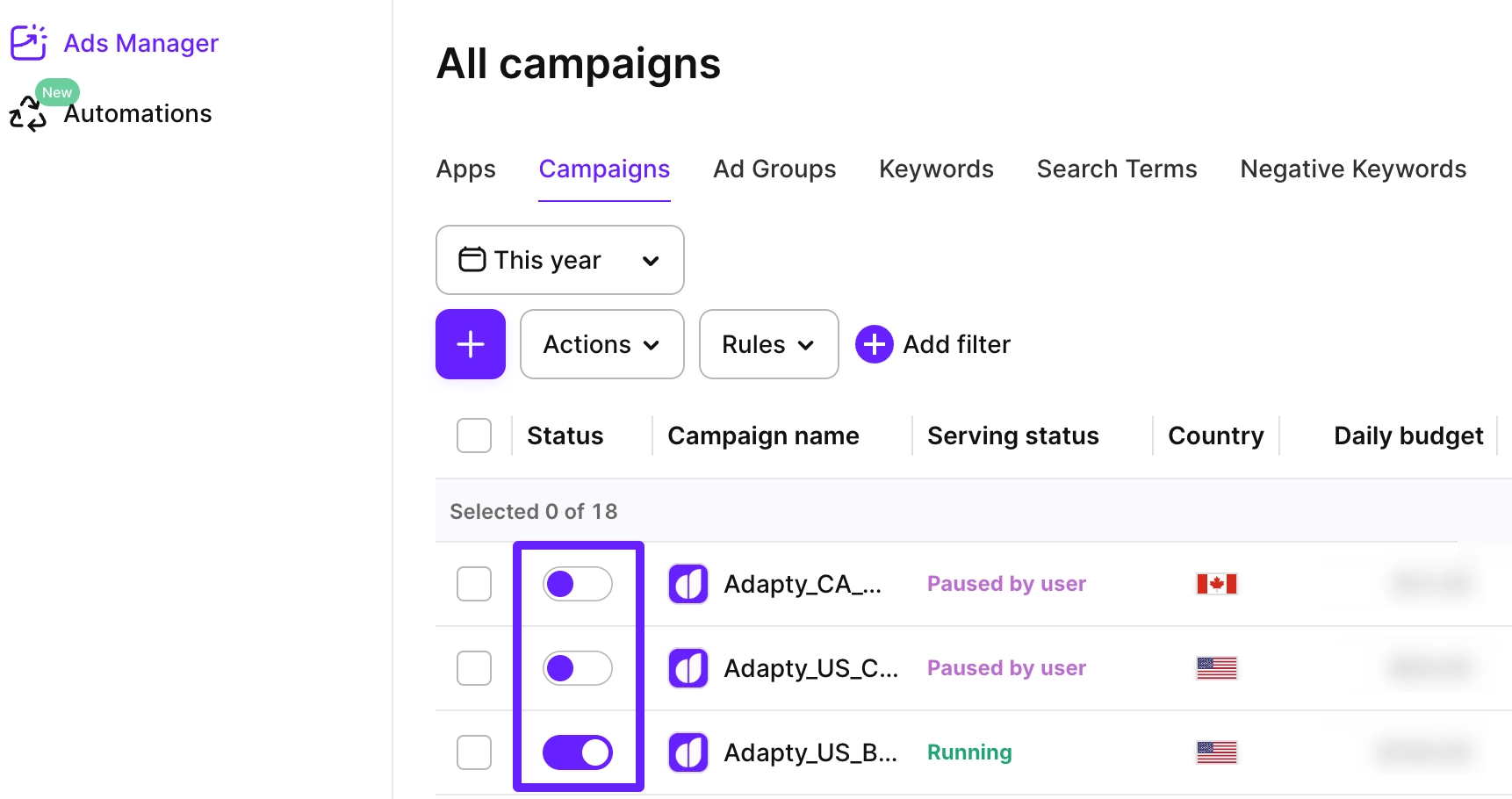
To launch or pause any campaign from Adapty Ads Manager:
-
Go to Ads Manager > Campaigns.
-
Switch the toggle on or off next to the campaign name in the Status column.
Delete campaigns
Adapty Ads Manager cannot delete campaigns. You can pause the campaign instead to halt spend, but keep its settings and analytics.